> For the complete documentation index, see [llms.txt](https://docs.unitlab.ai/llms.txt). Markdown versions of documentation pages are available by appending `.md` to page URLs; this page is available as [Markdown](https://docs.unitlab.ai/documentation/ko/annotations/annotation-tools/auto-select.md).
# Auto select
Unitlab Workbench의 Auto select 기능으로 도구를 바꾸지 않고 저장된 폴리곤, 바운딩 박스, 폴리라인, 스켈레톤, 큐보이드를 바로 선택해 편집하는 방법과 Hover, Click 트리거의 차이를 설명합니다.
Auto select를 사용하면 계속 그리면서 저장된 도형을 편집할 수 있습니다. 도형 위에 포인터를 올리면 활성화되고, 빈 곳을 누르면 새 도형을 그립니다. **Pan**으로 전환했다가 돌아올 필요가 없습니다.
## 지원 도구
Auto select는 **Polygon**(Vertex 모드), **Polyline**, **Skeleton**, **Bounding Box**, **Cuboid** 도구에서 작동합니다. 폴리곤의 **Brush**, **Eraser**, **Slice**, **Pencil**은 항상 누른 폴리곤을 선택합니다.
## 켜기
`A`를 누르거나 Workbench 상단의 **Auto select** 스위치를 사용합니다. 이 설정은 Auto select를 지원하는 모든 도구에 적용됩니다.
## Hover 또는 Click 선택
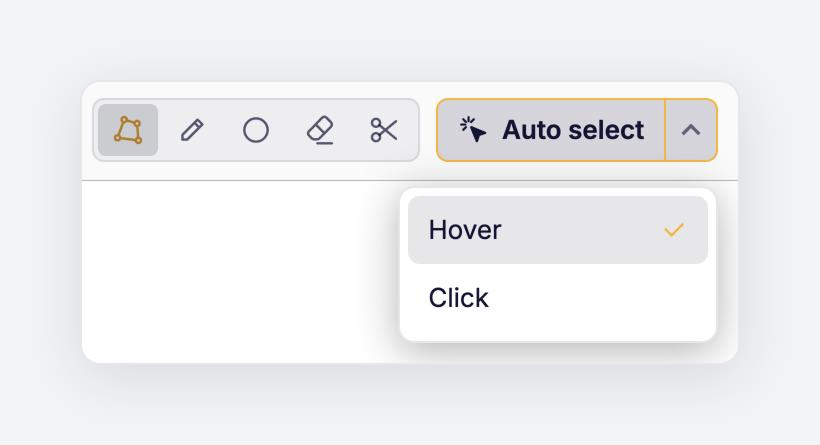
스위치 옆의 화살표를 클릭하고 트리거를 고릅니다.
| 트리거 | 도형이 선택되는 조건 | 적합한 경우 |
| -------------- | --------------------- | ------------------------------------- |
| **Hover**(기본값) | 도형 위에 포인터를 잠시 올려 둘 때. | 도형이 흩어져 있고 편집이 잦을 때. |
| **Click** | 도형을 클릭할 때만. | 도형이 빽빽하거나 겹쳐서 Hover가 자꾸 엉뚱한 도형을 고를 때. |
박스, 큐보이드, 선은 어느 트리거에서든 클릭하면 선택됩니다.
## 선택한 도형으로 할 수 있는 작업
| 도구 | 도형을 선택한 상태에서 |
| ------------------ | ------------------------------------------------------------------------------------------ |
| Polygon | 꼭짓점을 드래그합니다. 안쪽으로 이어 그려 영역을 추가하거나, 완전히 안쪽에 그려 구멍을 뚫습니다. 경계에서 `Shift` + 누르기로 그 구간을 다시 그립니다. |
| Polyline, Skeleton | 선을 클릭해 점을 삽입합니다. `Shift`를 탭하면 가장 가까운 끝에서 이어 그리고, `Esc`를 누르면 마칩니다. |
| Bounding box | 크기를 조절하고 회전합니다. `Shift` + 클릭으로 아래쪽 박스를 선택합니다. |
| Cuboid | 모서리와 가장자리 핸들을 드래그합니다. |
{% hint style="info" %}
그리퍼 위의 파지점처럼 기존 도형 위에 새 도형을 그리려면 Auto select를 끄십시오.
{% endhint %}
관련 문서: [폴리곤 도구](https://docs.unitlab.ai/documentation/ko/annotations/annotation-tools/polygon.md) · [포인트, 폴리라인, 스켈레톤](https://docs.unitlab.ai/documentation/ko/annotations/annotation-tools/points-polylines-and-skeletons.md) · [도구 설정](https://docs.unitlab.ai/documentation/ko/annotations/workbench-settings.md)
로봇 이미지: [DROID dataset](https://droid-dataset.github.io/) (Khazatsky et al., 2024), CC BY 4.0.