> For the complete documentation index, see [llms.txt](https://docs.unitlab.ai/llms.txt). Markdown versions of documentation pages are available by appending `.md` to page URLs; this page is available as [Markdown](https://docs.unitlab.ai/documentation/zh/annotations/annotation-tools/mask-brush.md).
# 掩码画笔
使用 Unitlab 的掩码画笔(Mask brush)为图像、视频、医学影像切片和 PDF 绘制像素级分割掩码,选择 Overlay、Preserve 或 Overwrite 模式处理相邻掩码,并用橡皮擦和轮廓画笔快速擦除或填充区域。
Brush 工具用于在对象上涂抹像素掩码。掩码适合从像素中学习的分割模型,以及边缘不规则的对象,例如柔软物体、组织或植被。

## 开始之前
* 项目中需要有标注类型为 **Mask** 的类别。
* Brush 适用于图像、视频、医学影像切片和 PDF 页面。在地理空间和病理数据上,掩码是用同样笔触绘制的矢量形状。
## 涂抹掩码
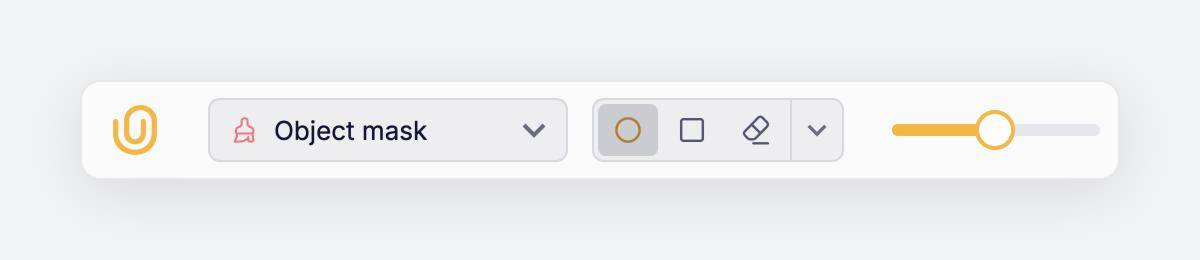
1. 按 `F` 或在工具栏中选择 **Brush**。
2. 选择一个掩码类别,例如 **Object mask**。
3. 选择笔尖:**Circle**(`Shift` + `1`)适合曲线,**Square**(`Shift` + `2`)适合直边。
4. 用 `[` 和 `]` 或滑块设置尺寸,默认为 20 px。
5. 在对象上涂抹,每一笔都会添加到选中的掩码中。
切换到 **Eraser**(`E`)可移除像素。沿边缘处理时请放大并使用较小的画笔。
## 用轮廓画笔填充区域
按 `Shift` + `W` 使用 **Outline brush**。沿对象边界一笔画一圈。闭合后,Unitlab 会填充内部。这是为大型对象绘制掩码最快的方法。
## 选择笔画如何处理其他掩码
当两个对象相邻时,画笔模式决定像素归属。
| 模式 | 快捷键 | 笔画的作用 | 适用场景 |
| --------------- | --- | ------------------- | -------------------- |
| **Overlay**(默认) | `G` | 覆盖所有内容进行涂抹,掩码可以重叠。 | 允许重叠,或区域为空。 |
| **Preserve** | `K` | 只涂抹未被其他掩码占用的像素。 | 填充到已完成的相邻掩码边界,但不触动它。 |
| **Overwrite** | `X` | 从其他掩码中夺取像素并分配给当前掩码。 | 修正越过边界的相邻掩码。 |
 ## 检查掩码
* 打开 **View settings** > **Annotation Display**,开启 **Show mask bounding boxes**,查看每个掩码的范围。
* 在检查器中降低 **Mask opacity**,对比掩码边缘与图像。
* 使用 **Quality Control** > **Highlight overlaps** 查找两个掩码共用的像素。
## 键盘快捷键
| 操作 | 快捷键 |
| ------------------------------ | ----------------------------- |
| Brush 工具 | `F` |
| 圆形 / 方形笔尖 | `Shift` + `1` / `Shift` + `2` |
| Eraser | `E` |
| 缩小 / 放大画笔 | `[` / `]` |
| Overlay / Preserve / Overwrite | `G` / `K` / `X` |
| Outline brush | `Shift` + `W` |
相关内容:[多边形标注工具](https://docs.unitlab.ai/documentation/zh/annotations/annotation-tools/polygon.md) · [Magic Touch 与 Detect all objects](https://docs.unitlab.ai/documentation/zh/auto-labeling/detect-anything-sam-1-sam-3.md) · [工具设置](https://docs.unitlab.ai/documentation/zh/annotations/workbench-settings.md)
机器人图像:[DROID 数据集](https://droid-dataset.github.io/)(Khazatsky 等,2024),CC BY 4.0。