> For the complete documentation index, see [llms.txt](https://docs.unitlab.ai/llms.txt). Markdown versions of documentation pages are available by appending `.md` to page URLs; this page is available as [Markdown](https://docs.unitlab.ai/documentation/zh/workspaces/storage-and-cloud-settings.md).
# 存储与云设置
存储与云设置:将你自己的 Amazon S3、Azure 或 Google Cloud 存储桶连接到 Unitlab 工作区,让文件保留在自有云存储中;了解添加、测试、编辑和删除云存储连接的步骤,所需权限,以及云端导入文件不计入上传额度等注意事项。
默认情况下,你上传的文件由 Unitlab 存储。如果你的数据必须保留在自己的云中,请在 **Settings > Cloud storage** 中连接存储桶。你需要具备 **Manage cloud storage** 权限。
## 添加云存储
1. 打开 **Settings > Cloud storage**,选择 **Add cloud storage**。
2. 选择服务商,并输入存储桶信息和访问凭证。
3. 保存。Unitlab 会测试连接;如果失败,你会看到 **Connection failed** 及其原因。
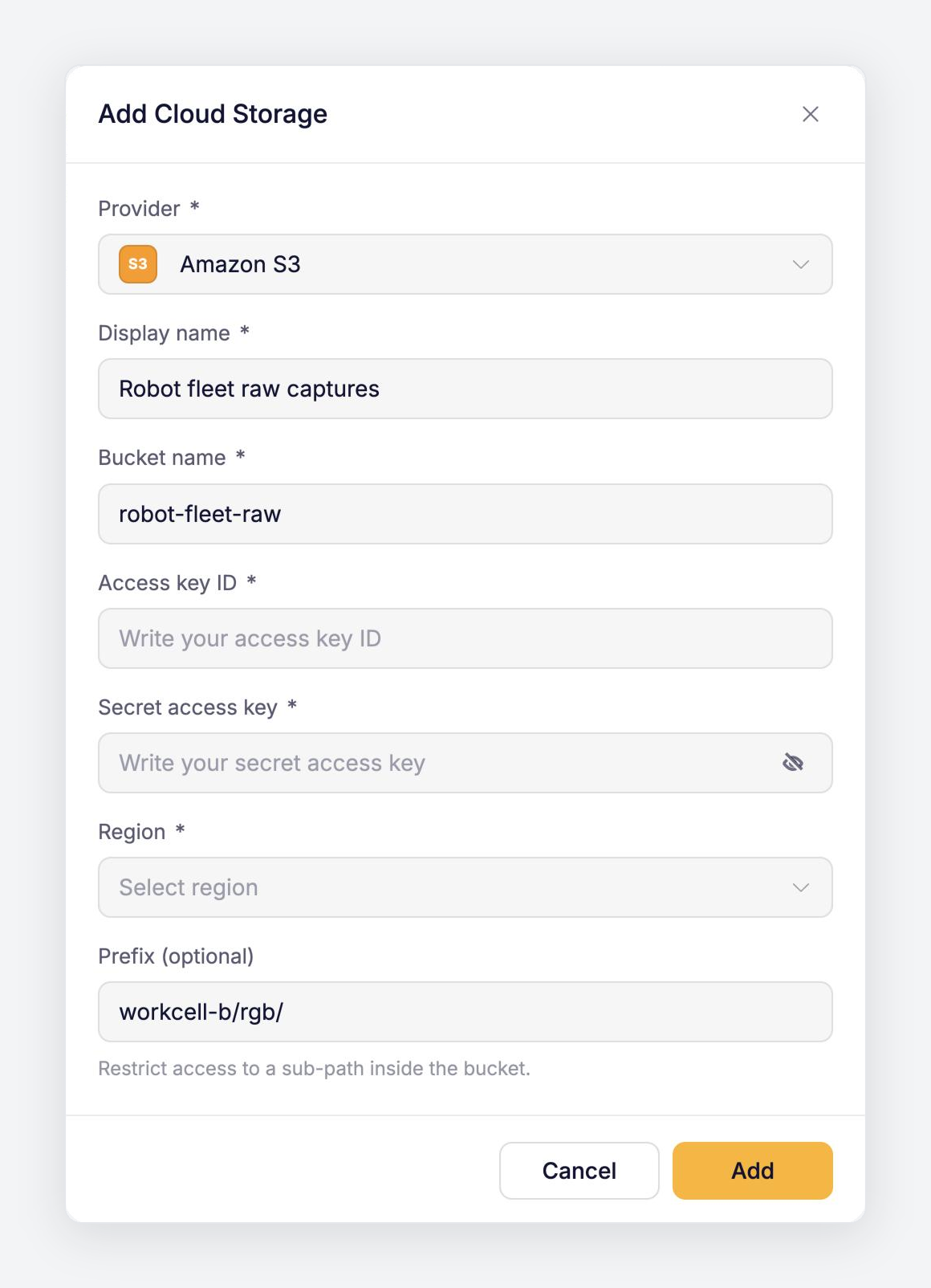 然后将存储桶中的文件导入 Data Space。各服务商的配置方法、所需权限和 CORS 规则请参阅[云服务商](https://docs.unitlab.ai/documentation/zh/data/cloud-providers.md)。
## 编辑或删除连接
列表中的每个连接都可以编辑(例如轮换凭证)或删除。删除前会要求你确认。
## 注意事项
* 从你的云中导入的文件不计入上传限额。详见[计费与用量](https://docs.unitlab.ai/documentation/zh/workspaces/capacity-limits-and-workspace-operations.md)。
* 只读凭证并不够用。Unitlab 会读取你的源文件,并把它生成的文件(缩略图、预览、视频帧和发布导出)写入存储桶中的 `unitlab-/` 文件夹。请为凭证授予源文件的读取权限和该文件夹的写入权限,且仅限 Unitlab 需要的存储桶。详见[云凭证治理](https://docs.unitlab.ai/documentation/zh/security/cloud-credential-governance.md)。
## 相关内容
[云服务商](https://docs.unitlab.ai/documentation/zh/data/cloud-providers.md) · [上传数据](https://docs.unitlab.ai/documentation/zh/data/data-upload.md)